How to Find Your Calendar ID
and User ID within 

Follow the steps below to locate your Calendar ID and User ID in GoHighLevel — both are required to complete your CRM Connector calendar integration.
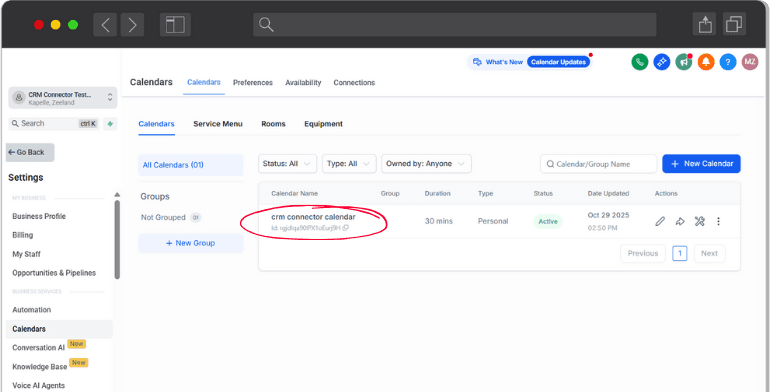
Step 1 of 2
How to Find Your Calendar ID in HighLevel
Step 1: Click "Calendars" in the left sidebar.
Step 2: Click "Calendar Settings" in the top-right corner.
Step 3: Under the calendar name, you will see the Calendar ID — copy this value.
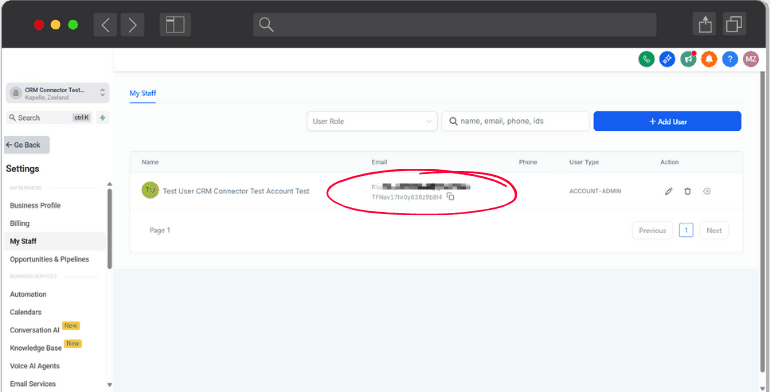
Step 2 of 2
How to Find Your User ID in HighLevel
Step 1: Click "Settings" at the bottom of the left sidebar.
Step 2: Select "My Staff".
Step 3: Find your staff member and copy the User ID shown under their email address.
Have more questions?
CRM Connector makes integrating external CRMs with GoHighLevel simple and reliable. If you can't find what you're looking for below, reach out and we'll help.
Can't find answers?
We're here to help with setup, integrations, or anything else. Get in touch and we'll get back to you as soon as possible.
Ready to sync your calendar? Start your 7-day free trial
Now that you have your Calendar ID and User ID, connect your external CRM to GoHighLevel in minutes with CRM Connector.
Calendar sync ready
Paste your Calendar ID and User ID into CRM Connector to start syncing appointments with GoHighLevel.
Real-time sync
Appointments flow automatically between your external CRM and GoHighLevel without manual effort.
Reliable and secure
Your calendar data stays in sync with zero manual entry after the initial setup.